 Maestro Docs
Ro's feedback and analytics
What Ro tells you after a test, and how to use the analytics page.
Ro is Maestro's AI coach. After a test, Ro turns your result into things you can act on.
On your result page
The Ro's take card shows quick signals worked out from your answers: what to fix, and what is Going well, plus stats such as accuracy, attempted and skipped, time used and negative marks.
Below it, Ro writes fuller feedback. This takes about a minute ("Ro is writing your feedback"). It can include:
- What to fix first
- What you did well
- Section by section
- Your plan for the week
- Why you got these wrong, for up to eight wrong answers
- advice on your written answers (To improve) and reviews of your code
If Ro didn't write it automatically, press Ask Ro. If it fails you'll see "Ro couldn't finish your feedback" with a Try again button.
Limits
Ro feedback is limited each month. If you reach it you'll see "You've used all your Ro feedback for this month". Your result isn't affected.
Your analytics
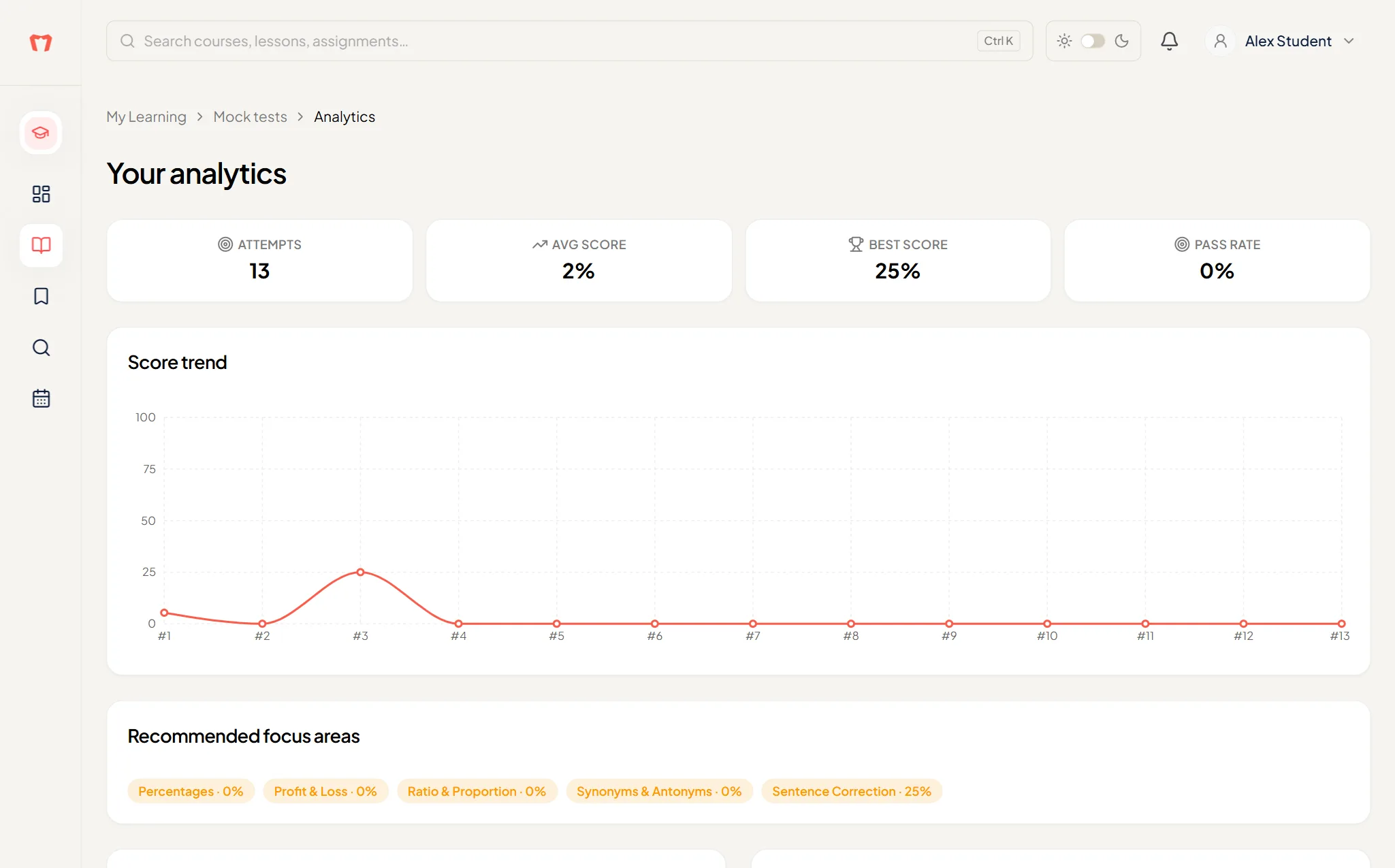
For the bigger picture, open Explore, choose Mock Tests, and press Your analytics. It shows:
- Attempts, Avg score, Best score and Pass rate
- Score trend over time
- Recommended focus areas
- Topic-wise accuracy
- Section performance
Compare two attempts
From Your attempts on a result, press See what changed. It compares with your previous graded attempt on the same test, and shows Improved, Dropped, Mixed or About the same. Press Want Ro's take on what changed? to get a short comment from Ro.