 Maestro Docs
Mock tests and interviews
Taking a test
Start, resume and submit a test, and use the question screen and coding workspace.
The test page
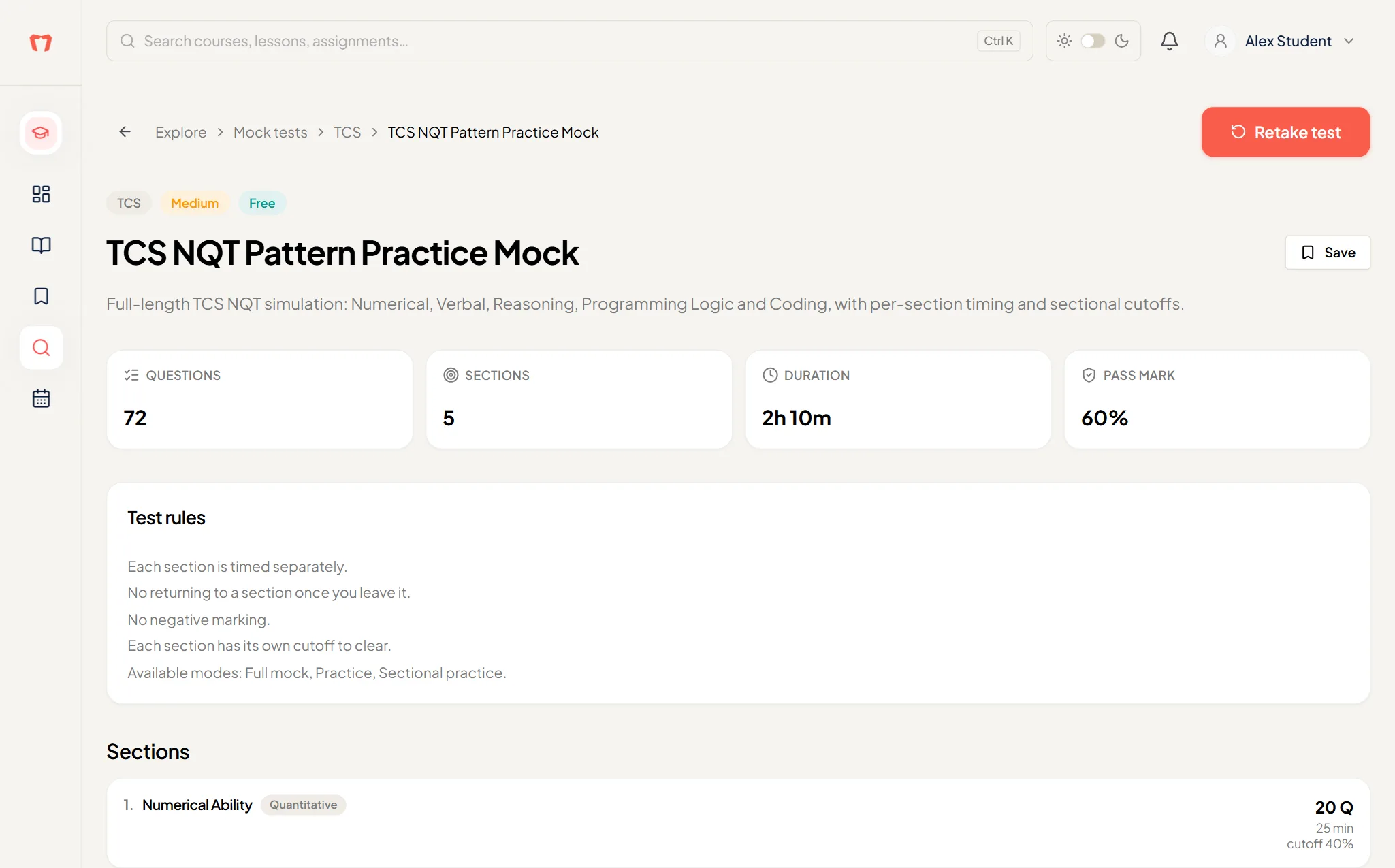
Before you start, the test page shows how many questions, sections and minutes it has, the pass mark, the Test rules, and each section with its own time and cutoff.
Start
Open the test and press the start button. Choose a mode.
Read the rules and tick Accept the test rules, Terms of Service and Privacy Policy.
Press Start test (Full mock) or Begin.
For a Full mock, a check screen asks for your camera. If the test requires fullscreen, the button reads Start test in fullscreen. Otherwise it reads Start test.
Resume
If you leave and come back, your answers are autosaved and the timer keeps running. Start the test again and press Resume it on the "You have an unfinished attempt" message. On the result page you'll also see Resume attempt.
The question screen
- The top shows Saving…, Saved, or Not saved, retrying.
- Under each question: Mark for review, Clear response, Previous question and Next question.
- The Questions grid shows each question as Answered, Not answered or Marked for review. Use it to jump around.
- At the end press Finish section or Submit test. A confirmation, "Submit the whole test?", warns you about unanswered questions and ones marked for review.
Coding questions
Coding and circuit questions use a full-screen workspace with tabs instead of the grid. See The coding workspace for everything it does. In short:
- Choose your language and use Reset to get the starter code back.
- Run sample tests or Run custom input to try your code. Running doesn't submit it.
- Your code autosaves, and it's graded against the full set of tests after you submit.