 Maestro Docs
Editor tour
The menus, toolbars, dock and panels of the Sim Lab editor.
The editor is a full-screen workspace. Here is what each part does.
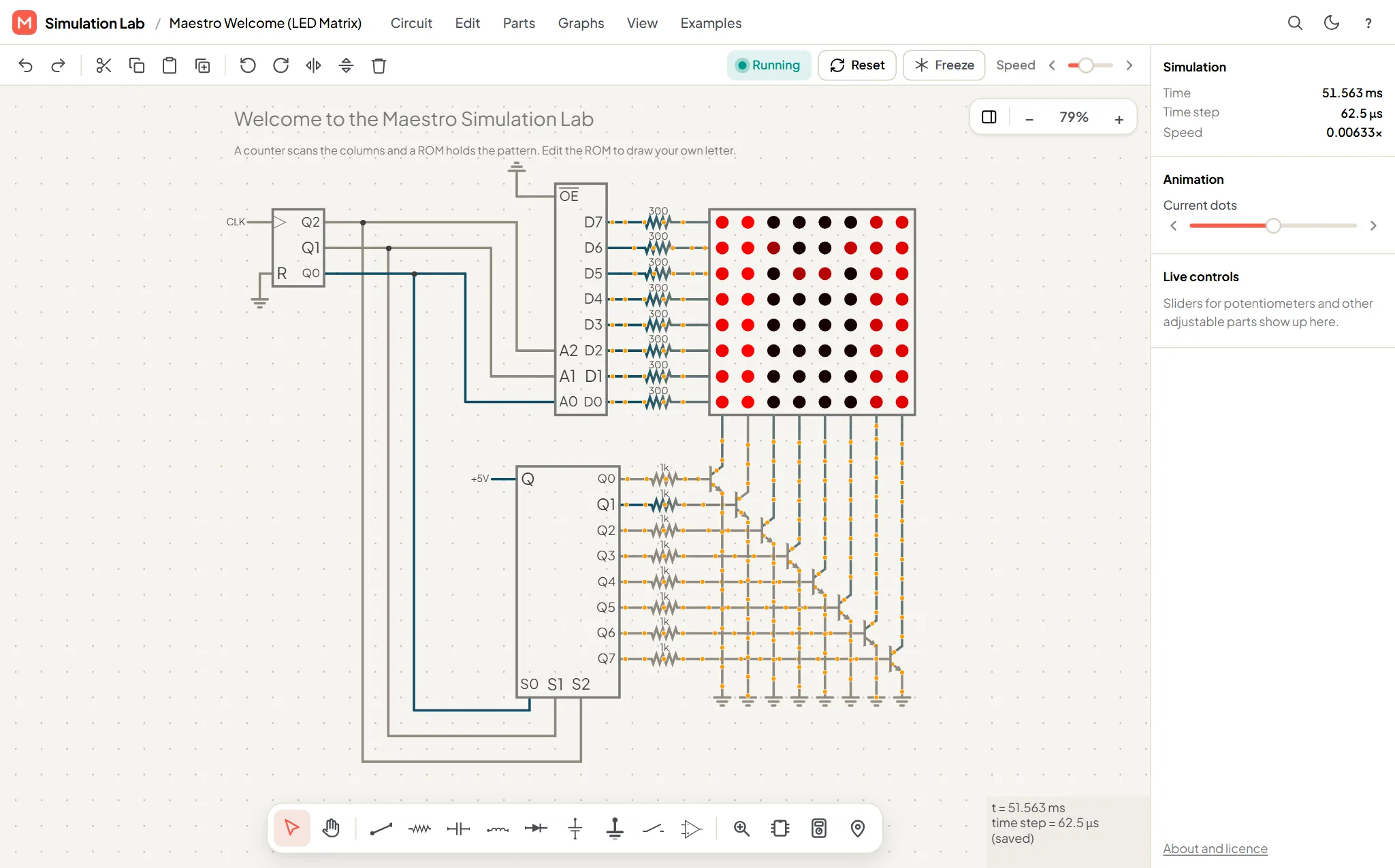
Top bar
Shows the circuit name and these menus:
| Menu | What is in it |
|---|---|
| Circuit | New blank circuit, Open from text, Restore last session, Solve DC operating point, Full screen |
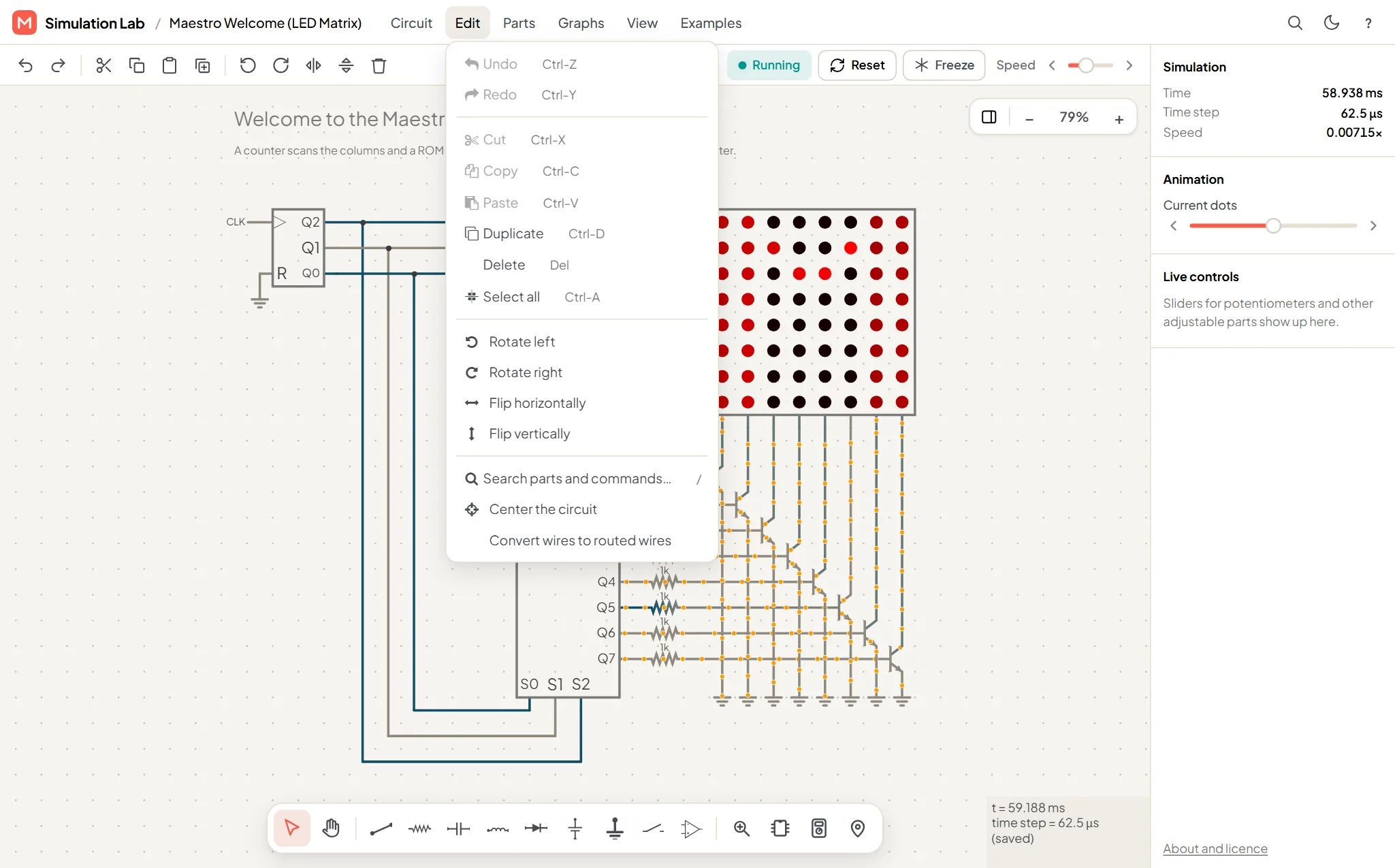
| Edit | Undo, Redo, Cut, Copy, Paste, Duplicate, Delete, Select all, Rotate, Flip |
| Parts | Every part, in groups (see below). Also Create a subcircuit and Manage subcircuits |
| Graphs | Stack, Unstack, Overlay, Separate |
| View | What to show, plus Settings and Keyboard shortcuts |
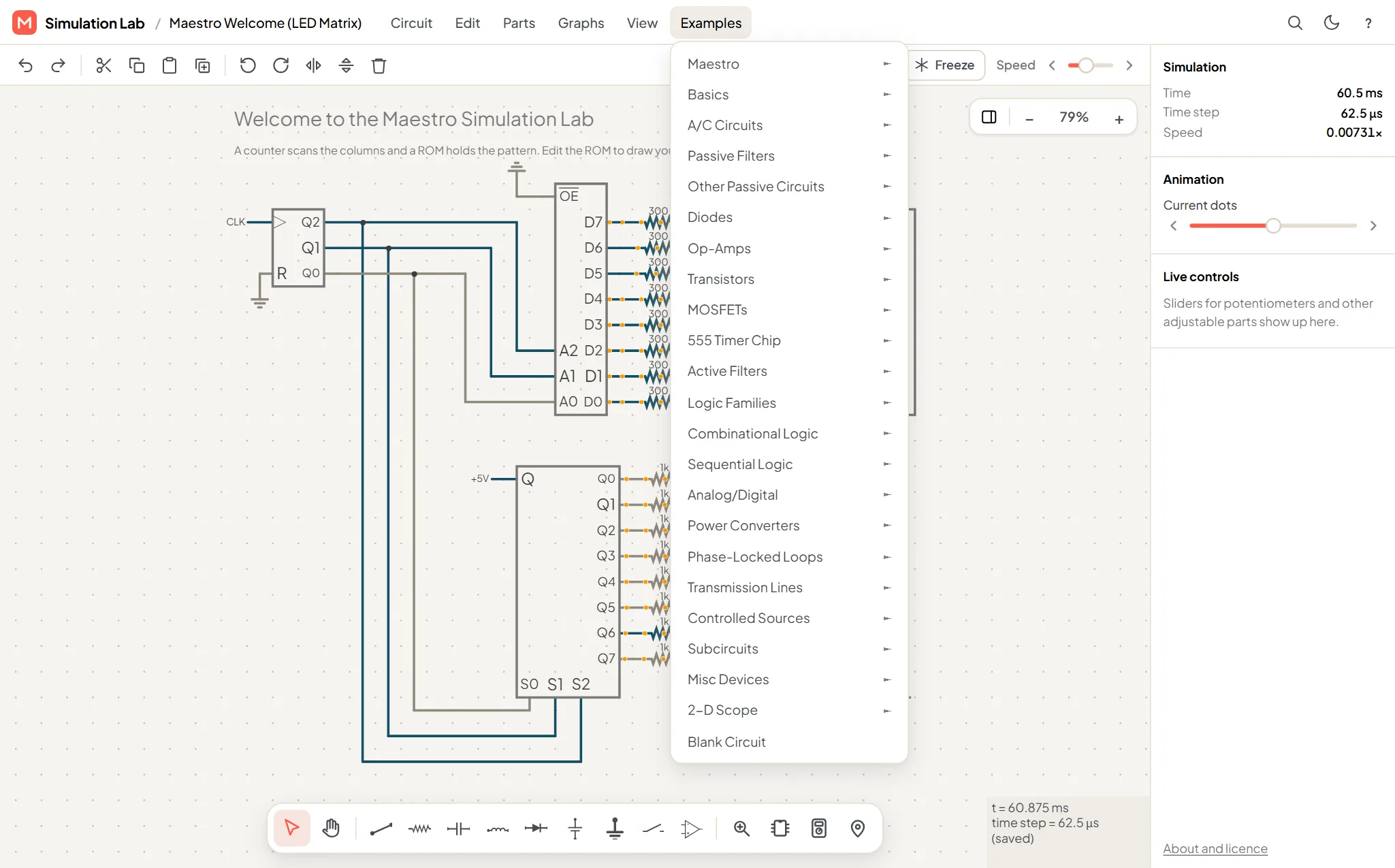
| Examples | Ready-made circuits, including a Maestro group |
At the right are search, a theme toggle and About and licence.
The Parts menu
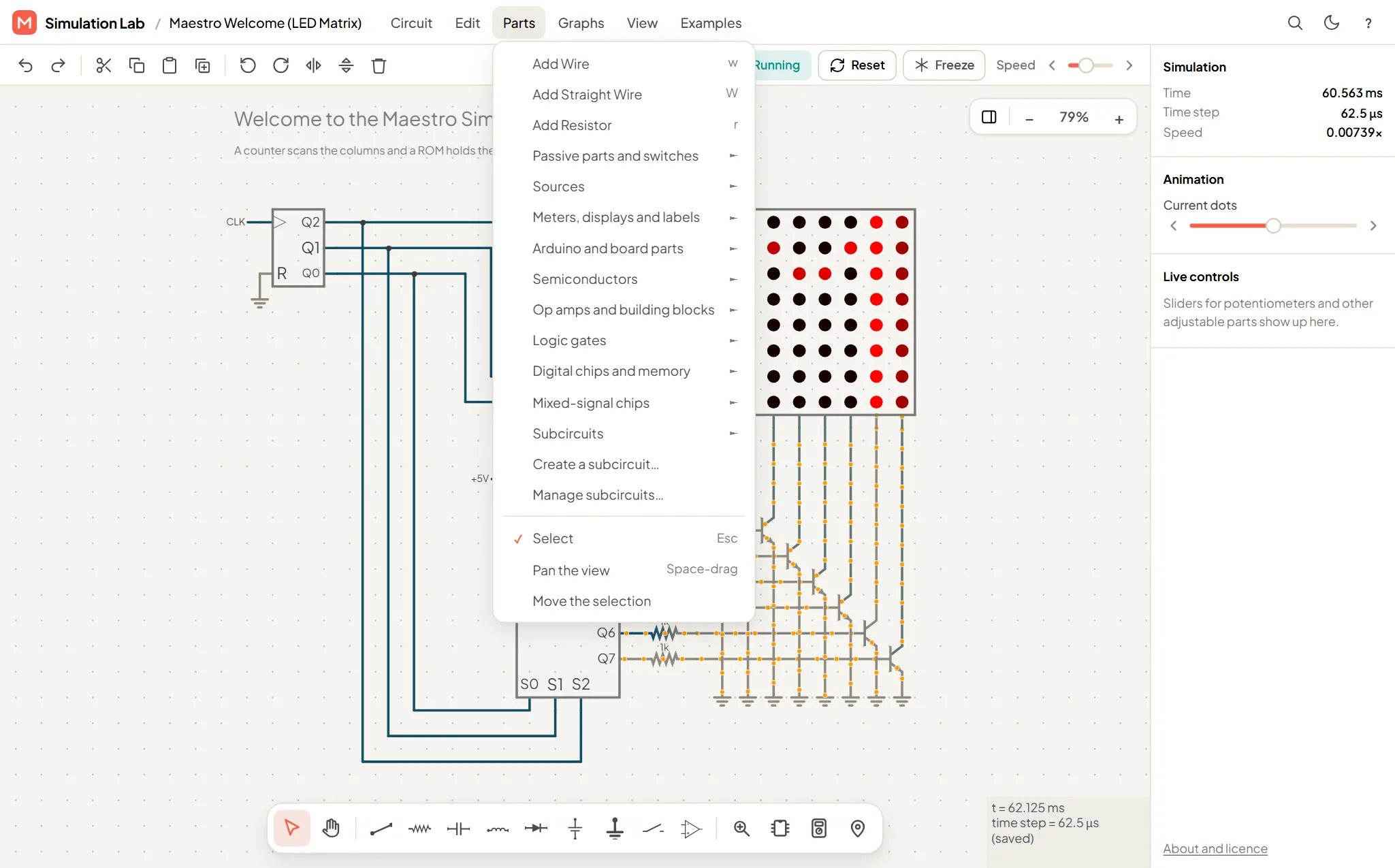
The groups are Passive parts and switches, Sources, Meters, displays and labels, Arduino and board parts, Semiconductors, Op amps and building blocks, Logic gates, Digital chips and memory, Mixed-signal chips and Subcircuits. Under them: Create a subcircuit…, Manage subcircuits…, and the Select, Pan the view and Move the selection tools.
The Edit menu
The View menu
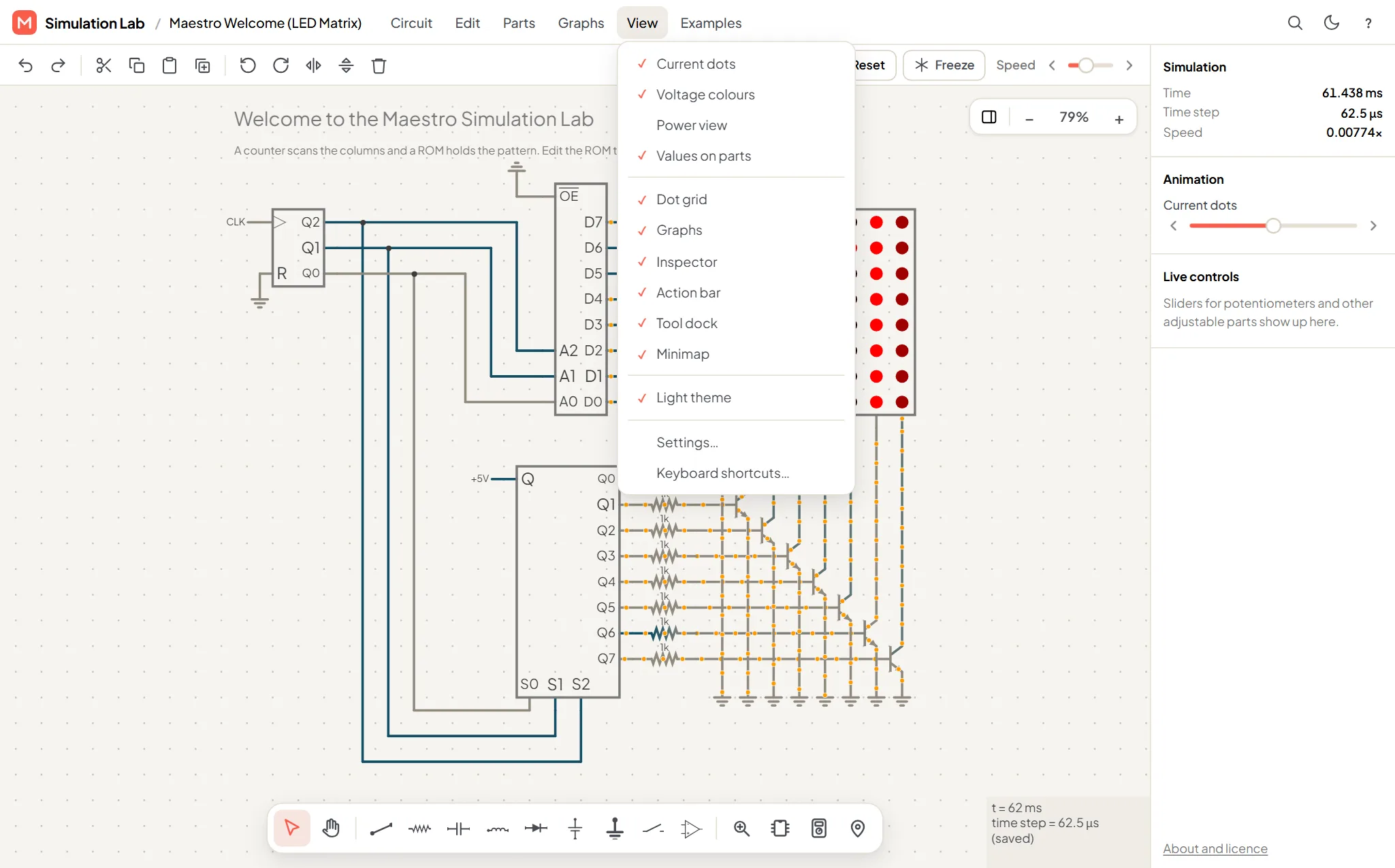
Tick or untick Current dots, Voltage colours, Power view, Values on parts, Dot grid, Graphs, Inspector, Action bar, Tool dock, Minimap and Light theme. Settings… has more options, such as European resistor symbols, IEC gate symbols and the direction of current. Keyboard shortcuts… lets you change shortcuts.
Action bar
Undo and redo, cut, copy and paste, duplicate, rotate and flip, delete, then Running or Stopped, Reset, Freeze and Speed.
The dock at the bottom
Quick tools: Select, Hand (pan), wire, resistor, capacitor, inductor, diode, voltage source, ground, switch and op amp. Then a magnifier to search all parts, ICs, Instruments, and a pin button for grading points (hidden in exams).
To place a part, press and drag its button onto the canvas.
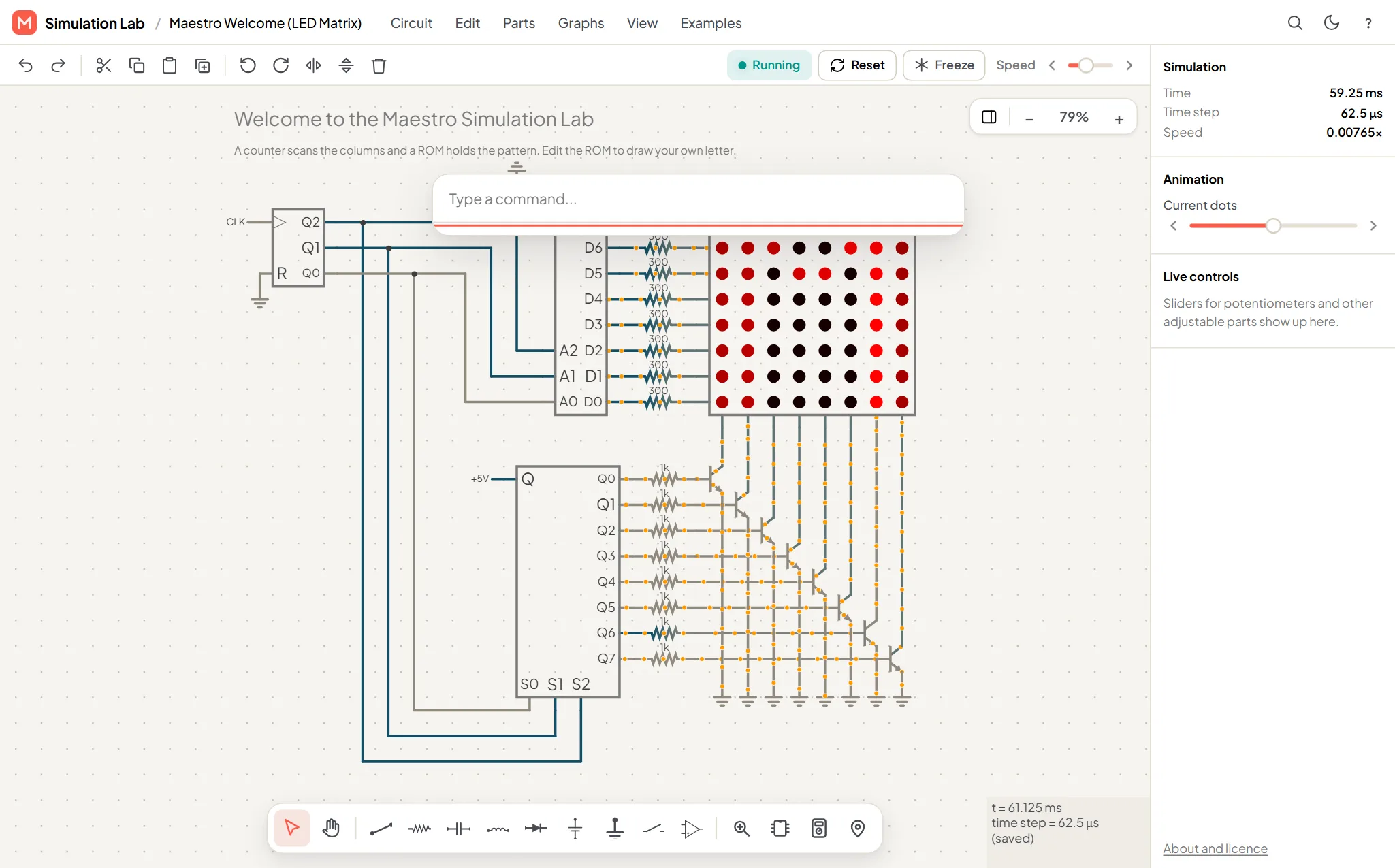
Inspector (right)
Shows the simulated time and time step, the speed of the current dots, and Live controls, where sliders for potentiometers and other adjustable parts appear. Click a part to open its properties.
Graph strip and zoom pill
Scopes appear along the bottom. The zoom pill (top right of the canvas) has zoom, buttons to hide the graphs and Inspector, and the Help button. A minimap appears when part of your circuit is off screen.
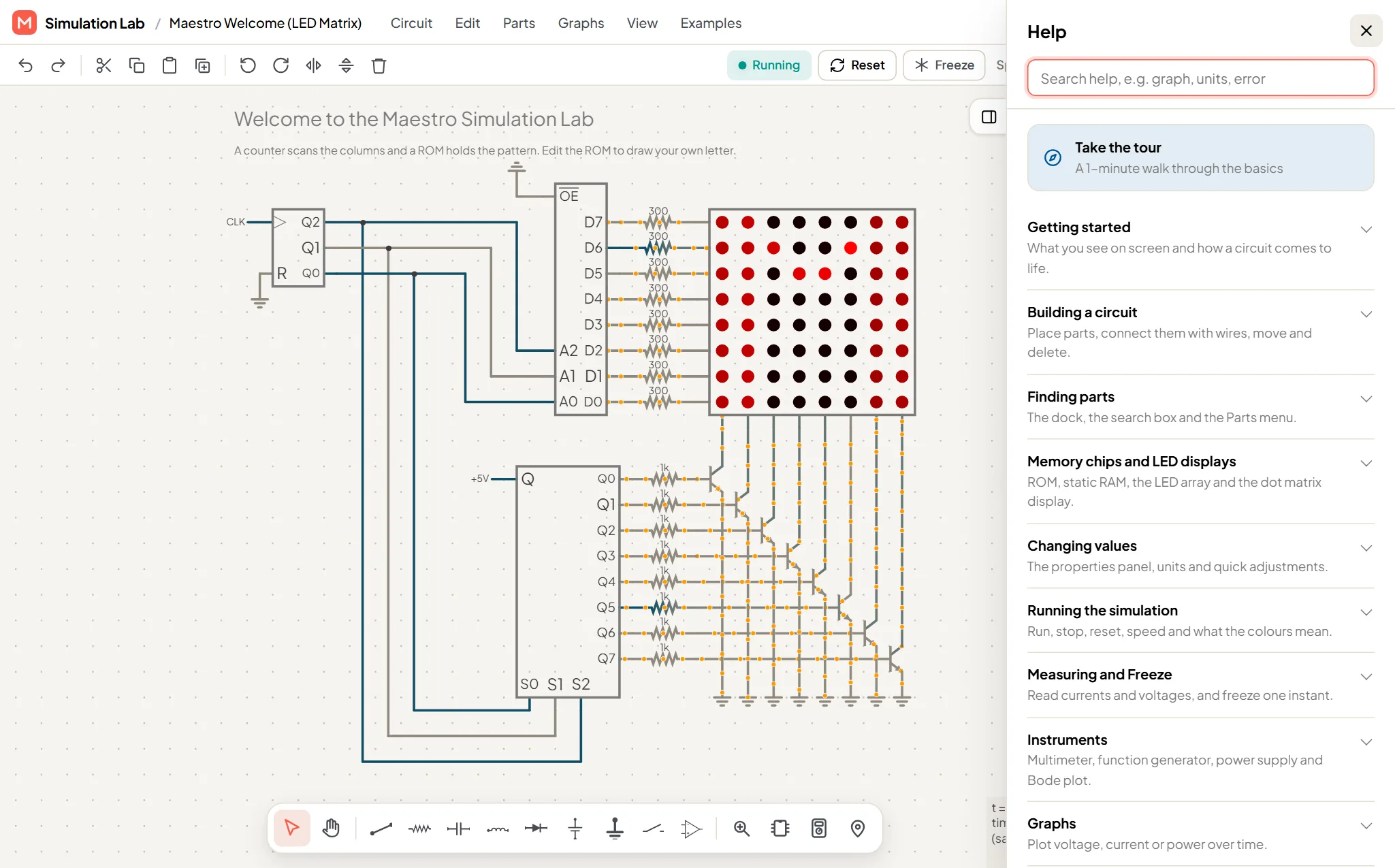
Help
Press the ? button for Help. It's searchable and has a 1-minute Take the tour.
Examples
Open Examples for ready-made circuits. The Maestro group has a welcome LED-matrix demo and a dot-matrix display.
Saving
Inside Labs, the project header shows Saved, Saving…, or Not saved. Retry. See Projects and sharing.