 Maestro Docs
IC library
Ready-made chips, your own subcircuits and your college's shared chips.
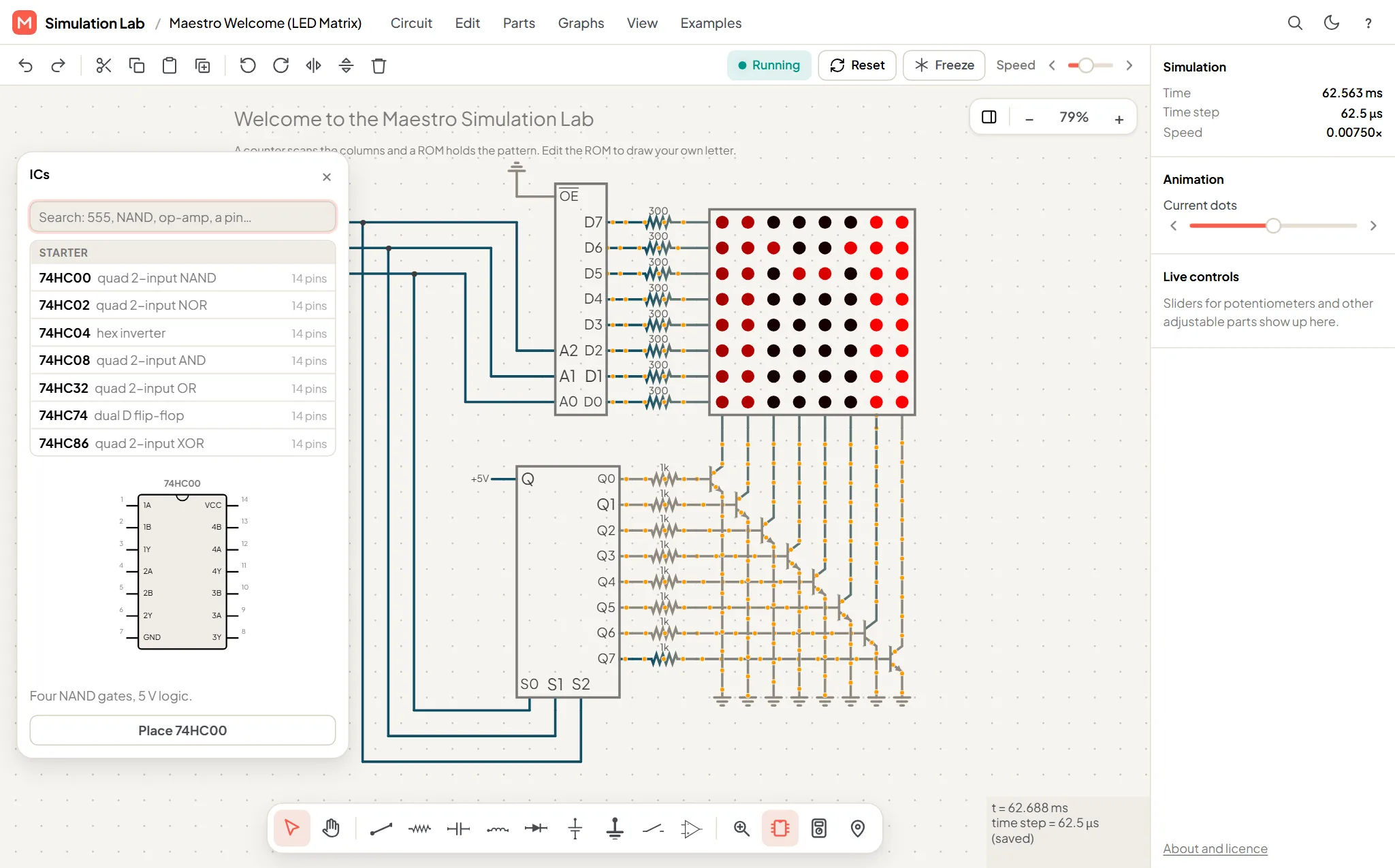
Open ICs in the dock to browse chips. The panel has a search box ("Search: 555, NAND, op-amp, a pin…"), a list, a pinout diagram for the chip you select, and a Place button.
Groups
| Group | What it is |
|---|---|
| Starter | Common chips that come with Sim Lab. |
| College library | Chips your college has shared with its students. |
| Yours | Chips you saved yourself. |
Starter chips
The starter set is seven 74HC logic chips in 14-pin packages:
| Chip | What it is |
|---|---|
| 74HC00 | Quad 2-input NAND |
| 74HC02 | Quad 2-input NOR |
| 74HC04 | Hex inverter |
| 74HC08 | Quad 2-input AND |
| 74HC32 | Quad 2-input OR |
| 74HC74 | Dual D flip-flop |
| 74HC86 | Quad 2-input XOR |
Select a chip to see its pinout and a one-line description, then press Place 74HC00 (or whichever chip you chose).
Build your own chip
Use Manage subcircuits… to rename or remove the ones you've made. Your chips travel with the project, so they're there when you reopen or share it. Creating subcircuits isn't available in tests.
College library
If your college has shared chips, they appear in the College library group automatically. Students can place them but not change them. They aren't copied into your project's saved data.
Limits
- A project's chip library is limited in size (about 1 MB).
- Names in a college library must be unique.