 Maestro Docs
Find your way around
The sidebar, dashboard, search, notifications and your account menu.
After you log in you land on Home. Everything else is one click away in the sidebar.
The sidebar
| Item | What it is |
|---|---|
| Home | Your dashboard: the courses you are in, and a featured learning path. |
| My Learning | Everything you enrolled in, with your progress. |
| Bookmarks | Things you saved to find again. |
| Labs | Your circuit projects. Only shown when Labs is switched on. |
| Explore | Browse every course, learning path and mock test. |
| Events | Upcoming events and the ones you registered for. |
| Plans | Plans and pricing. Only shown when plans are switched on. |
Your account menu
Open the avatar menu at the top right. It has:
- My Profile
- Account & Security
- Certificates & Receipts
See Account and settings for what each one does.
Search
Press Ctrl K (or Cmd K) anywhere in the app to search. You can also open the search page from the top bar.
Notifications
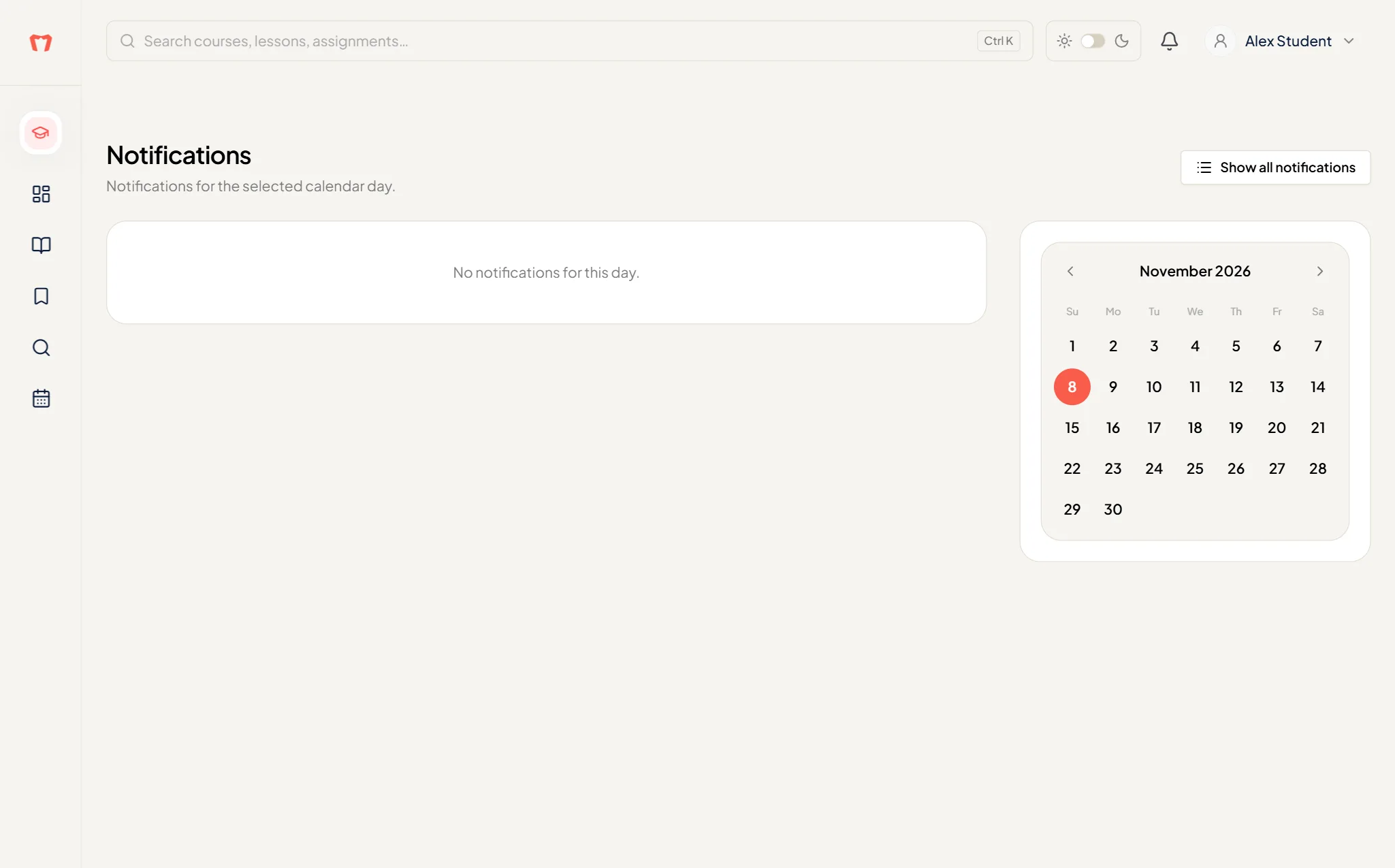
The bell at the top shows how many unread notifications you have. The Notifications page shows the notifications for the day you pick on the calendar. Press Show all notifications to see everything, newest first. When something is unread you'll also see a Mark all read button.
Colleges
If your college added you, you also get a college menu: Home, Tests, Drives, Lab work and My membership. While your invite is still pending, only Home is shown.
If you have nothing yet
The first time you open Home, if you haven't enrolled in anything yet, Maestro takes you to Explore so you can pick something to start.
Open Explore